 Mon Prof Augmenté
My weekend routine for checking what my son learned this week, in the age of AI
On Saturday morning I take out my son’s exercise books and look at what he did during the week. For a long time, that was it: I read the lessons, nodded along, and had no real idea how much he had kept. This is how I replaced that vague feeling with an actual quiz, built from his exercise books, which he then takes on his tablet.
The problem I wanted to solve
Reading an exercise book is not the same as checking what stuck. A tidy page tells you nothing about what a child still remembers a week after the lesson. And writing a quiz myself for every topic covered in class (grammar, spelling, geometry) would eat most of my weekend if I did it by hand, one topic at a time.
My solution uses two tools: NotebookLM to build questions from real teaching sources, and Mon Prof Augmenté to turn them into a quiz my son takes on his tablet, with a result I can look at afterwards.
Step 0: I sign up as a teacher, even though I’m only a parent
The quiz builder on quiz.monprofaugmente.fr is designed for teachers. Nothing stops a parent from signing up as one in the app, and that is what I did. Once logged in, I land on the “My Quizzes” dashboard, with two buttons: Create a quiz to write everything by hand, and NotebookLM assisted creation for the routine I describe here.
The screenshots below show the French version of the tools. The steps are the same in English.

Step 1: I go back through the week’s exercise books
For each subject worked on during the week, I write down the exact topic, not just the subject. “Sentence types: statements, questions, commands and exclamations” is not the same thing as plain “grammar”. The more precise the topic, the more closely the questions will match what my son actually did in class.
Step 2: for each topic, I gather sources in NotebookLM
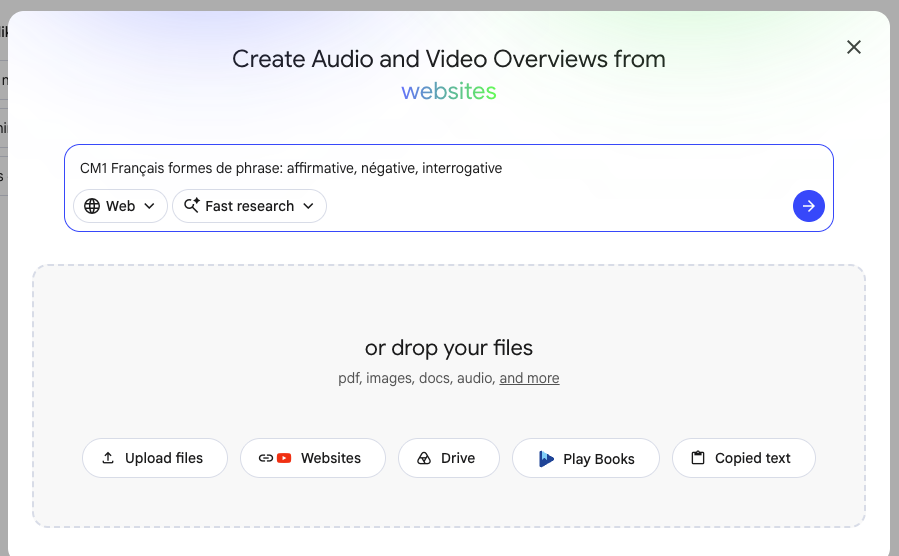
I open notebooklm.google.com, create a notebook, and type the age, the subject and the topic into the search bar. One detail cost me time at first: the search starts in a quick mode by default. Switch it to Deep Research so NotebookLM goes looking for serious sources (the official curriculum, teacher resource sites) rather than three generic pages.
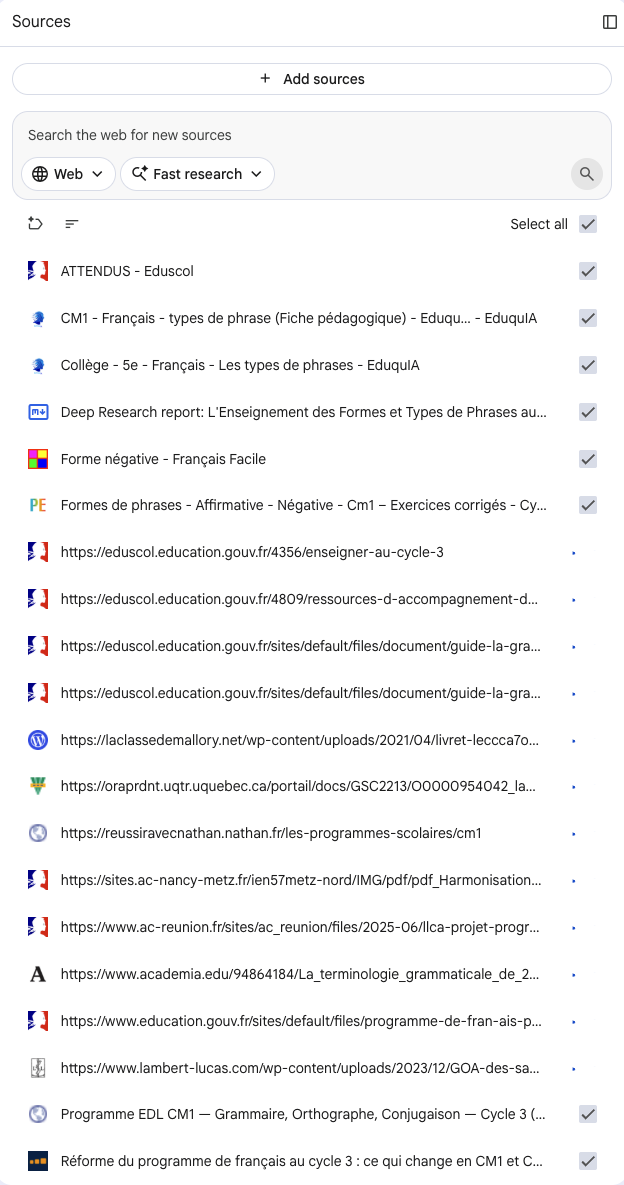
Once Deep Research has run, NotebookLM suggests around twenty sources: the curriculum text, lesson plans, worked exercises. I don’t tick them all. I keep only the ones that match what was covered in class that week.
Another useful point: when the method used in class is more precise than anything the web turns up, you can add the source yourself and skip the search. A photo of a page from the exercise book or the textbook, a PDF of the worksheet the teacher handed out, or even some pasted text can go into the notebook just like a source found by the search. It is often the better choice. The exact lesson my son had in class matters more than a generic article on the same topic.
Step 3: I set up the quiz in Mon Prof Augmenté and copy the prompt
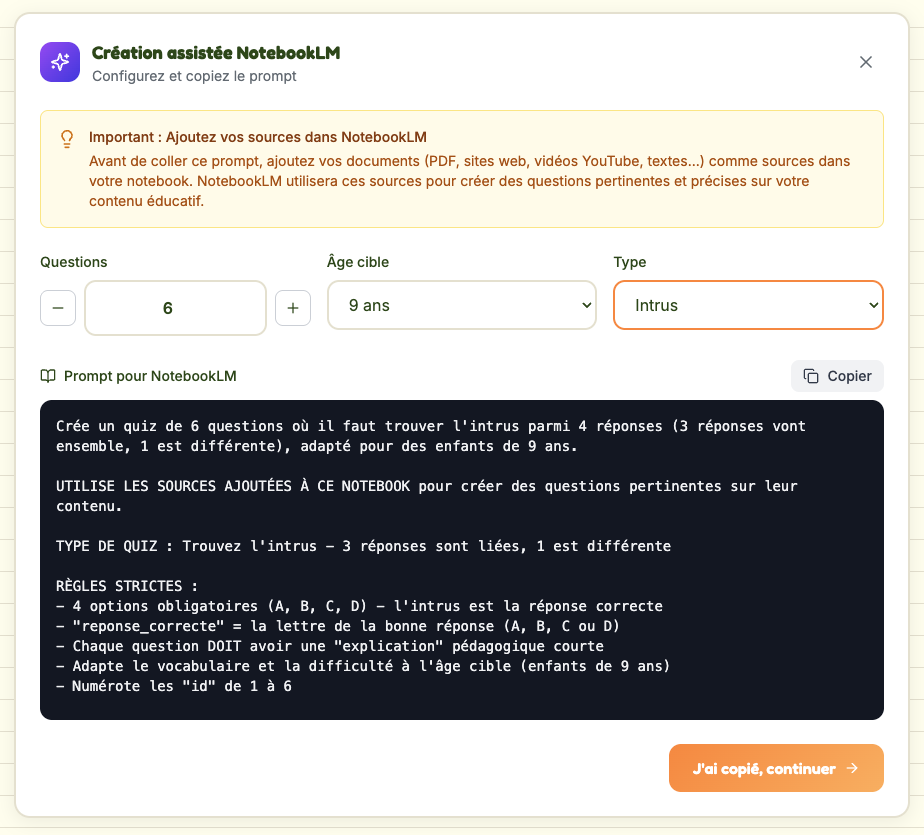
Back on quiz.monprofaugmente.fr, I click NotebookLM assisted creation. I choose the number of questions (usually 6, to stay within a 9-year-old’s attention span), the target age, and the question type.
There are three types: Correct answer (classic multiple choice, one right answer out of four), Odd one out (three answers belong together, one is different), and True/False. Most of the time, Correct answer is the most useful: it is the format closest to what my son already knows from school. I keep Odd one out for topics that really are about spotting a category, like telling a question apart from a statement or a command.
Once those choices are made, the tool writes a ready-to-use prompt with precise rules: the number of options, the format of the right answer, a short explanation for each question. I click Copy.
Step 4: I paste the prompt into NotebookLM and get the JSON back
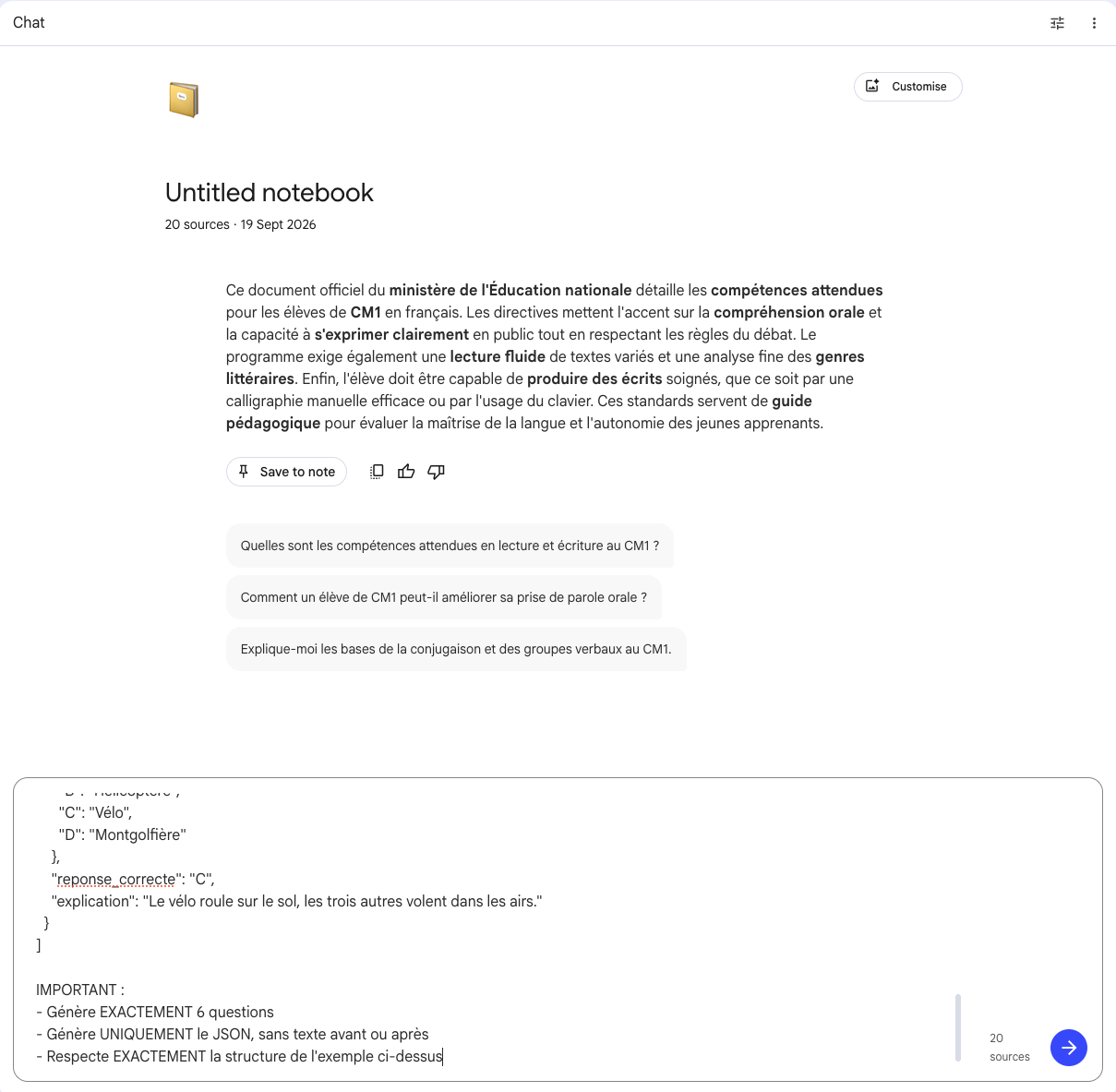
I go back to my notebook, with my sources selected, and paste the prompt into the chat. NotebookLM answers from the sources I kept, not from general knowledge picked up somewhere else. That is the difference between a quiz that fits the curriculum and a quiz that could land on anything.
Step 5: I paste the JSON answer, confirm, and the quiz exists
I copy NotebookLM’s answer and paste it into the box on Mon Prof Augmenté (the button to get there is I’ve copied it, continue). I give the quiz a title, usually the age, the subject and the topic, so I can find it again later.
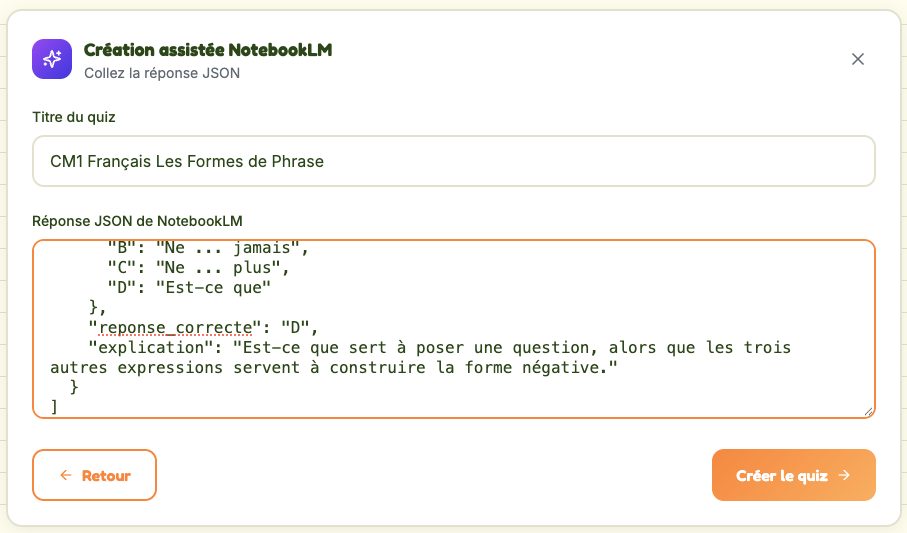
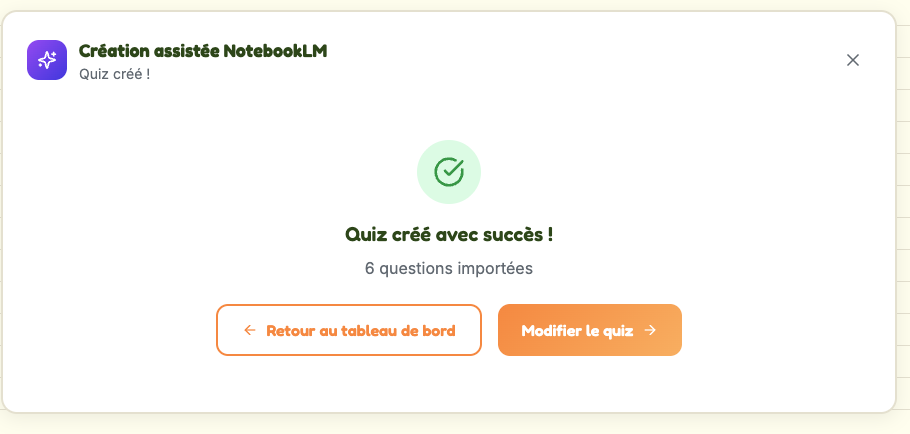
One click on Create the quiz and the confirmation screen appears: “Quiz created!”, with “6 questions imported” underneath.
Step 6: the one I forgot the first time, sharing the quiz with students
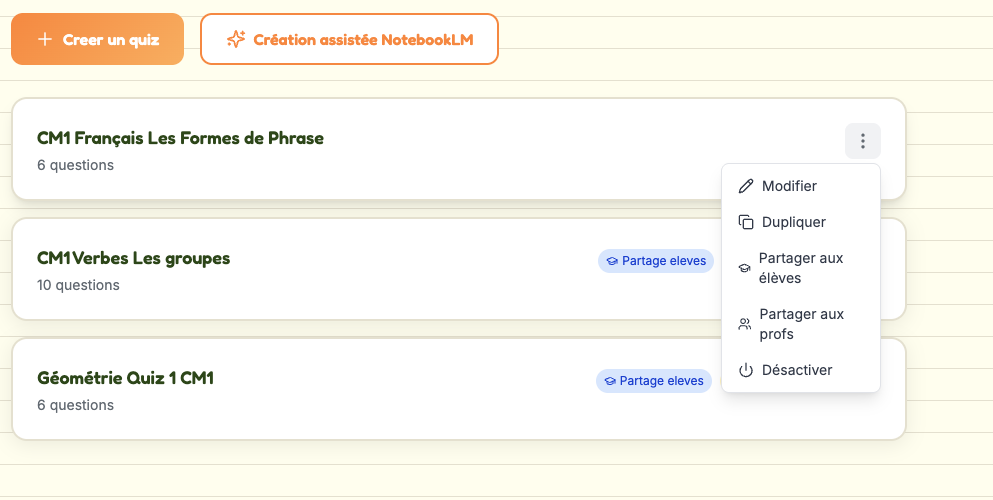
The quiz exists, but it doesn’t go anywhere on its own. On the dashboard, next to the title, there is a three-dot menu. Open it and choose Share with students. Without this step, the quiz stays invisible to my son, even though the previous screen makes it look like everything is done. It is exactly the step I missed the first time, before I worked out why nothing was showing up on the tablet.
The following weekend, I look at the results
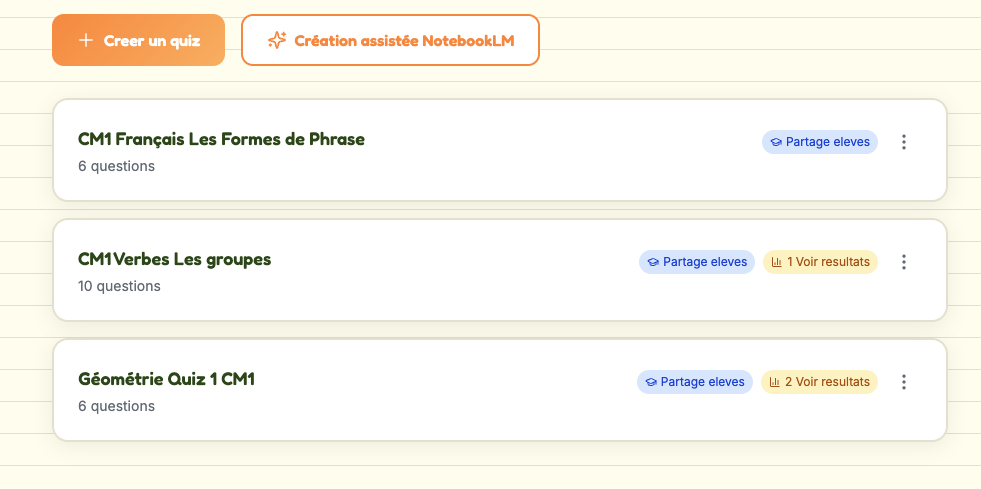
Once shared, the quiz carries a “Shared with students” badge on the dashboard. My son finds it on the tablet where he is signed in, takes it, and a “View results” badge appears with the number of attempts. That badge closes the loop. I no longer wonder whether he remembered his lesson; I can see it.
What it actually changes
A complete quiz, sources included, takes me five to ten minutes per topic, against a good hour if I had to write it myself from scratch. And the questions come from what was really covered in class that week, not from a generic generator that might land on a part of the curriculum nobody has touched yet.
It doesn’t replace school, or my son’s teacher. It is just a way to close the loop before Monday comes round again: the exercise book says what was done, the quiz tells me what stayed.